How to Monitor Website Uptime Using Uptime Kuma
Leave a comment on How to Monitor Website Uptime Using Uptime Kuma

In today’s digital age, keeping your website accessible and working at all times is critical. Downtime can cost you money, frustrate customers, and harm your brand’s reputation. This is where Uptime Kuma, a free, self-hosted monitoring tool, comes in. This tutorial will walk you through the process of configuring Uptime Kuma to effectively monitor your website’s uptime.
What is Uptime Kuma?
Uptime Kuma is an open-source, self-hosted monitoring tool that allows you to check the availability of your website and services. It has an easy-to-use UI and sophisticated features that deliver real-time notifications when your website goes down. Some key features of Uptime Kuma include:
- Multiple monitoring methods (HTTP, TCP, Ping, DNS, etc.)
- Customizable status pages
- Notification integrations (Telegram, Discord, Slack, Email, etc.)
- Self-hosting capability for full control
Prerequisites
- Before installing Uptime Kuma, ensure you have the following:
- A server or VPS running Linux, Windows, or macOS (Here we use Ubuntu 22.04 server)
- Docker installed (recommended for easy deployment) or Node.js
- Basic knowledge of the command line
Installing Uptime Kuma
Using Docker (Recommended Method) Install Docker and Docker Compose:
sudo apt update && sudo apt install docker.io docker-compose -y
Run Uptime Kuma in a Docker container:
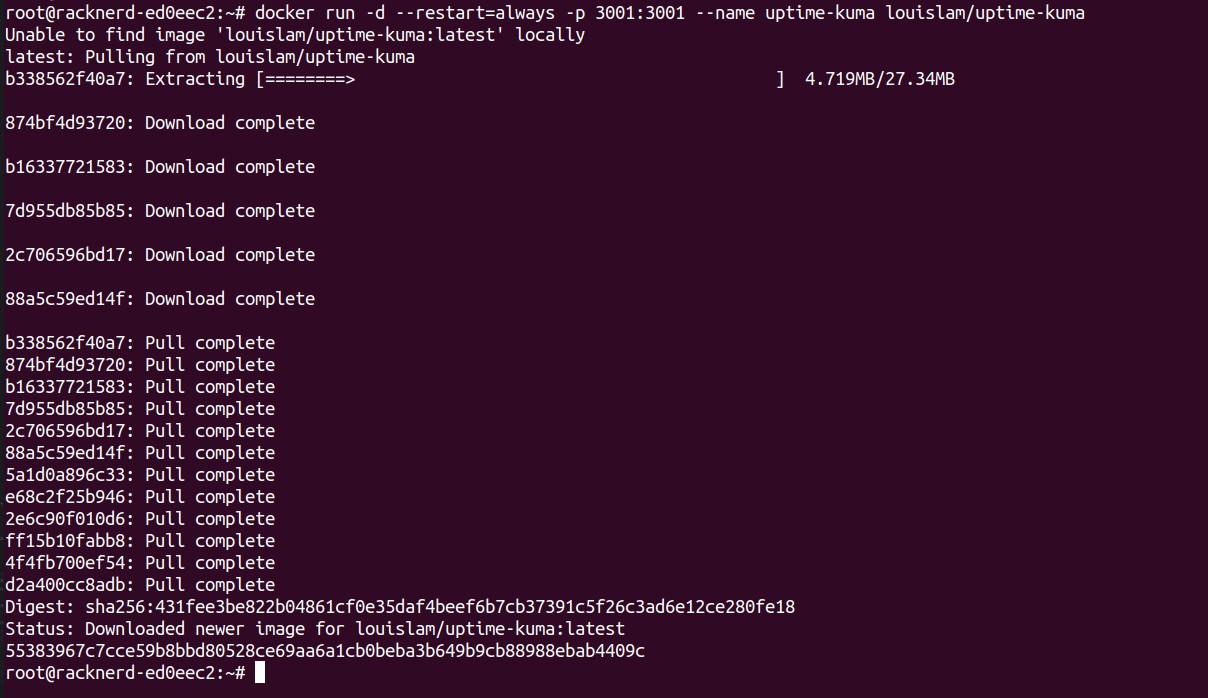
docker run -d –restart=always -p 3001:3001 –name uptime-kuma louislam/uptime-kuma
Access the Uptime Kuma web interface: Open your browser and go to
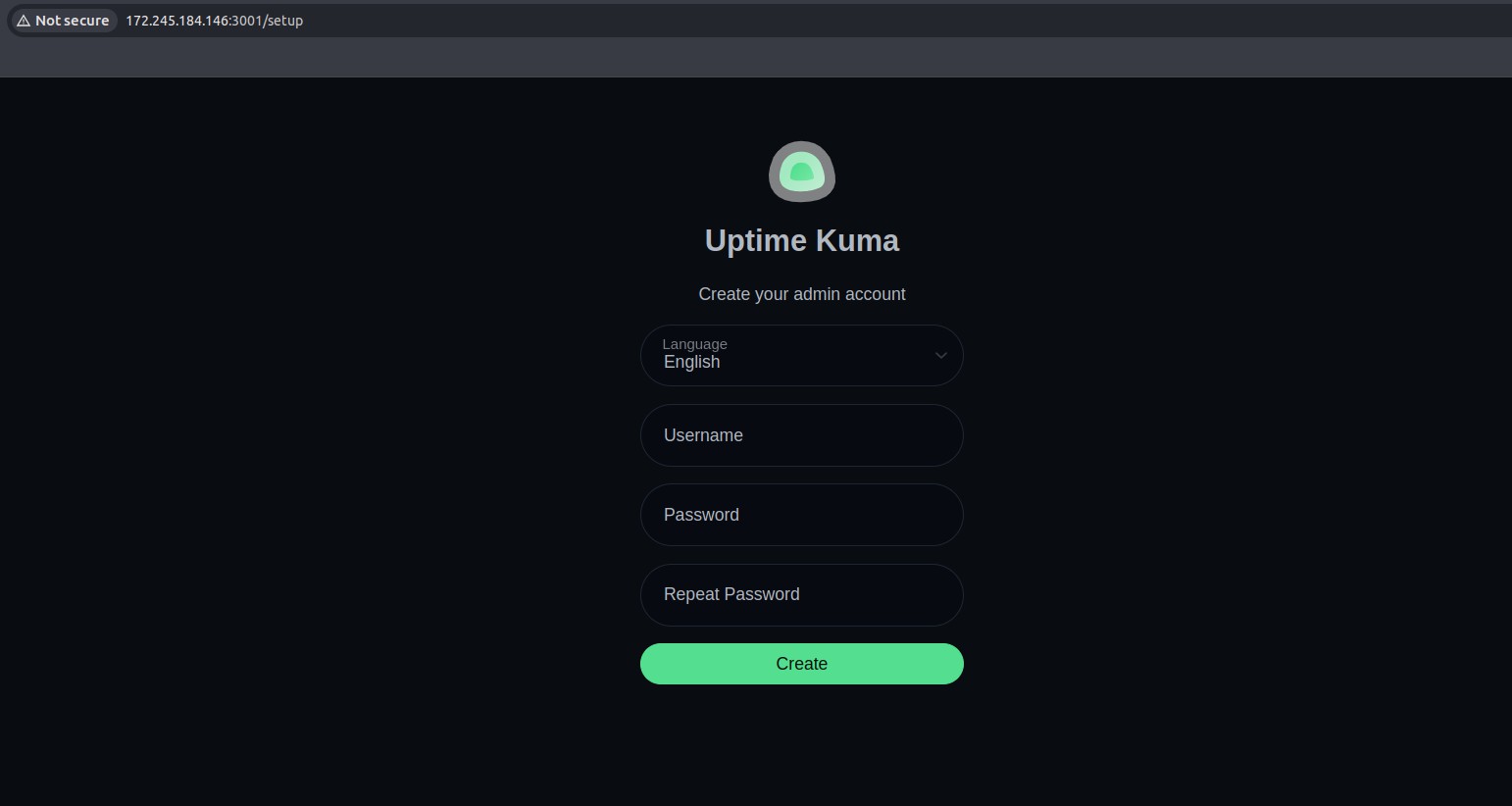
Configuring Uptime Kuma for Website Monitoring
Log in to the Uptime Kuma web interface.
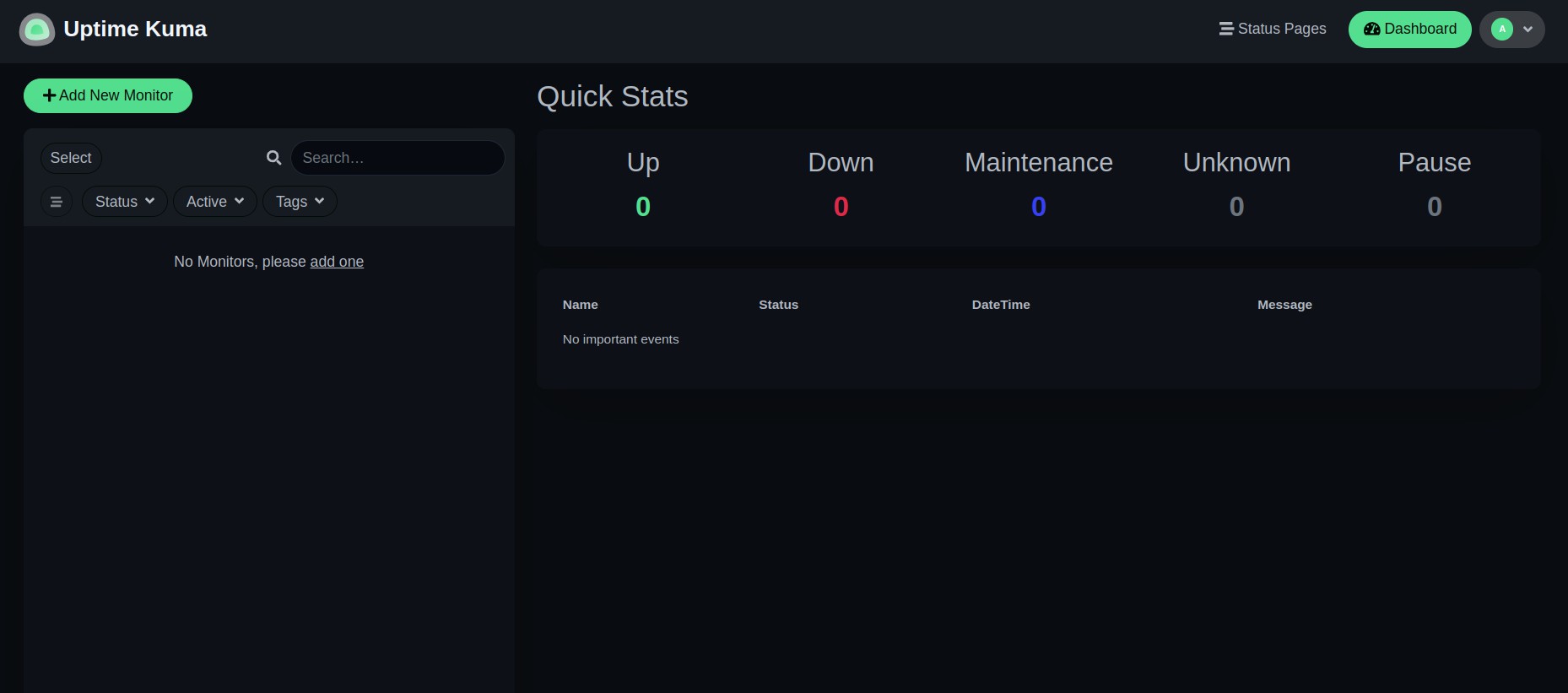
Create a new monitor:
-
- Click on the Add New Monitor button.
- Choose the monitoring type (e.g., HTTP(s), Ping, DNS, etc.).
- Enter your website’s URL.
- Set the monitoring interval (e.g., every 60 seconds).
- Configure notification preferences if needed.
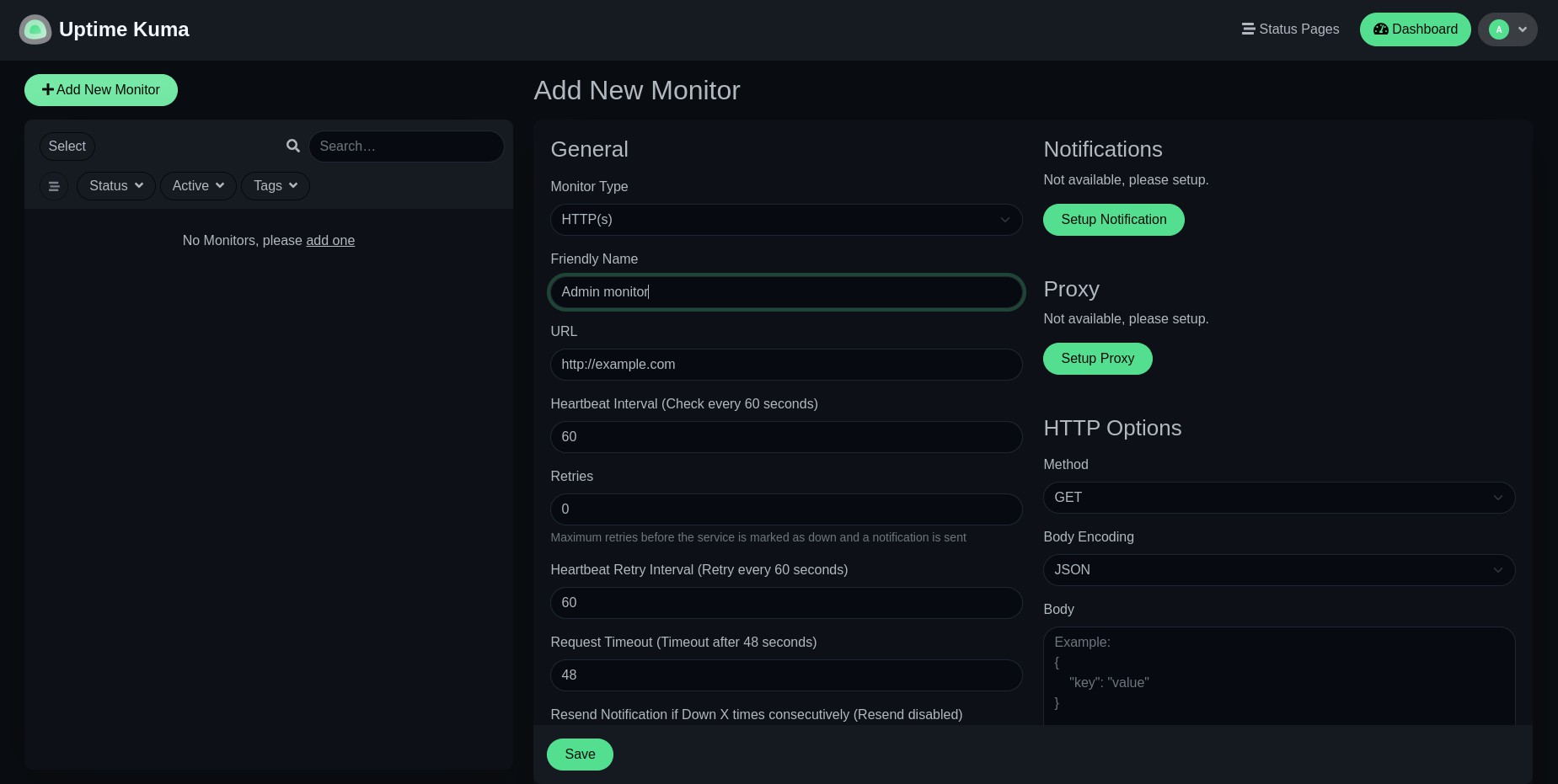
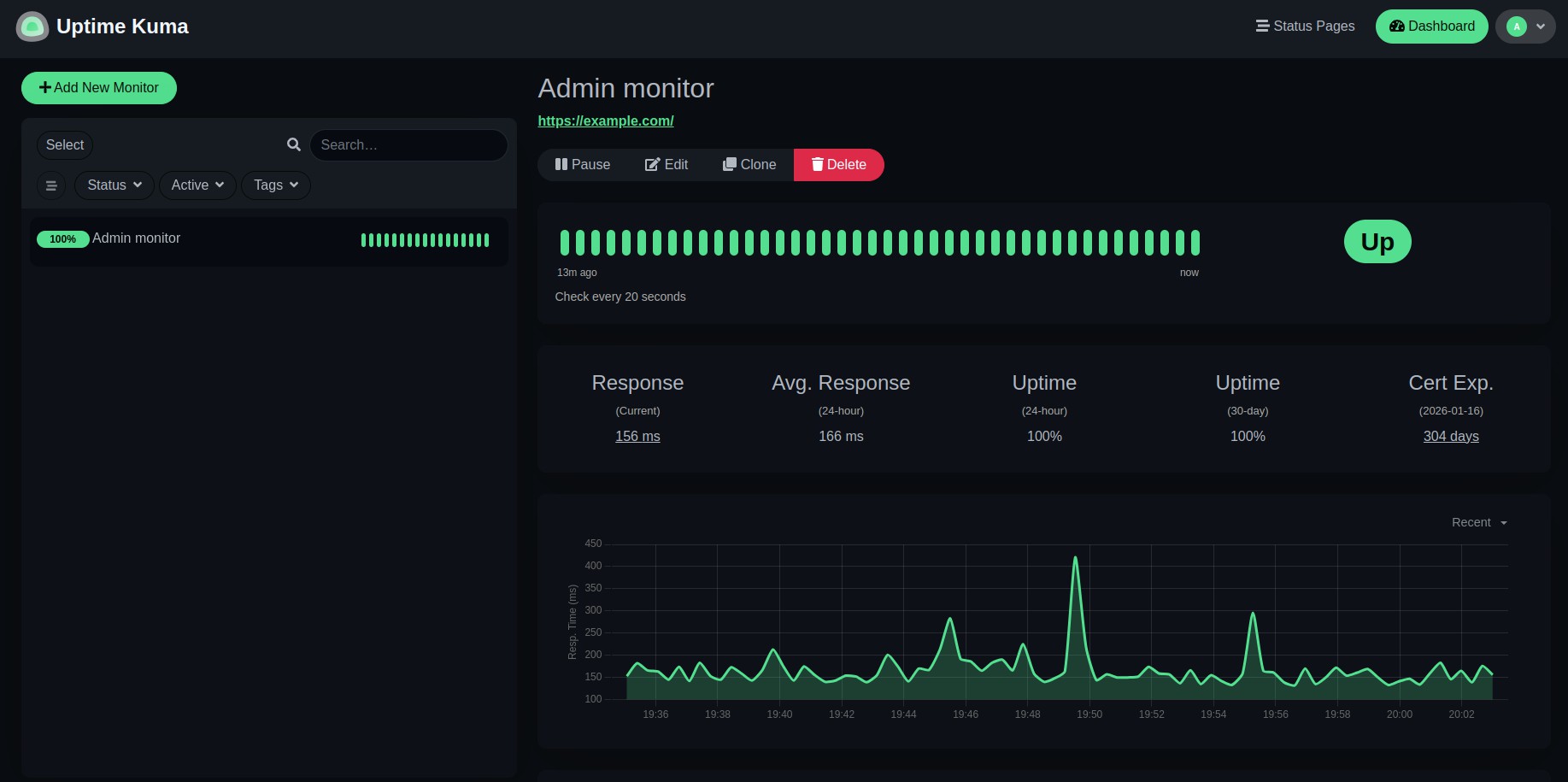
Save the monitor and let Uptime Kuma begin tracking uptime.
Setting Up Notifications
Uptime Kuma allows you to receive alerts via various channels:
- Email: Configure SMTP settings.
- Telegram: Use the Telegram Bot API.
- Slack or Discord: Integrate using webhooks.
- Pushover, Gotify, etc.: Use third-party notification services.
To set up notifications, navigate to Settings > Notification and follow the on-screen instructions for your preferred method.
Viewing Reports and Logs
- Uptime Kuma provides detailed logs and uptime reports for each monitor.
- You can view response times, downtime history, and status reports in a visually appealing dashboard.
- Export logs for further analysis if needed.
Conclusion
Monitoring your website’s uptime is essential to ensure a seamless user experience. Uptime Kuma offers an excellent self-hosted solution with powerful features, real-time alerts, and easy customization.