How to Install OpenLiteSpeed Web Server on Your VPS
Leave a comment on How to Install OpenLiteSpeed Web Server on Your VPS
If you’re looking for a high-performance, lightweight, and easy-to-manage web server, OpenLiteSpeed is an outstanding choice. It provides excellent speed, security, and scalability while remaining user-friendly. In this guide, we’ll guide you through the process of installing OpenLiteSpeed on your VPS. And here we are using a Ubuntu 22.04 server.

Step 1 – Update Your System
Update all the System Packages to make sure your Ubuntu server is up-to-date. (This may take a few minutes to complete)
sudo apt update && sudo apt upgrade -y
Step 2 – Install OpenLiteSpeed
OpenLiteSpeed can be installed using the official repository. Run the following commands:
wget -O – http://rpms.litespeedtech.com/debian/enable_lst_debian_repo.sh | sudo bash
sudo apt install openlitespeed -y
Once installed, you can start OpenLiteSpeed using:
sudo systemctl start lsws
sudo systemctl enable lsws
Step 3 – Install PHP and MySQL
OpenLiteSpeed comes with a built-in PHP processor. You can install PHP and MySQL as follows.
Install PHP:
sudo apt install lsphp81 lsphp81-mysql -y
Configure OpenLiteSpeed to use the installed PHP version:
ln -sf /usr/local/lsws/lsphp81/bin/php /usr/bin/php
Install, start and enable MySQL server:
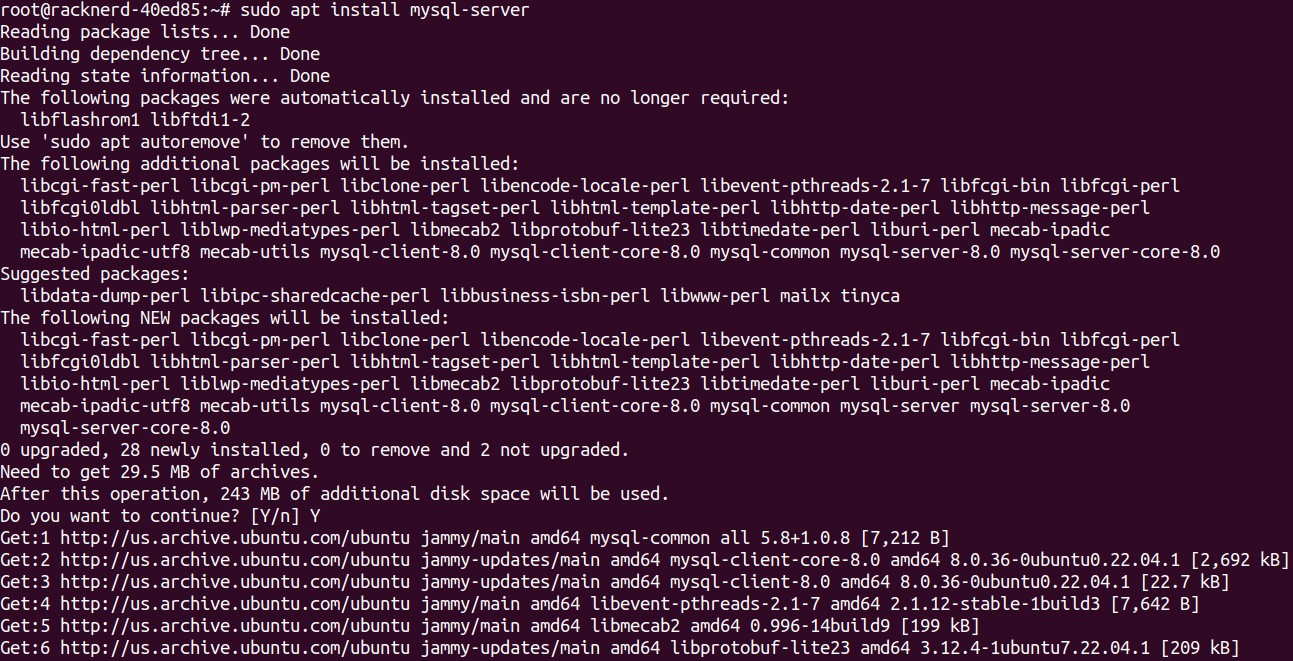
sudo apt install mysql-server sudo systemctl start mysql
sudo systemctl enable mysql
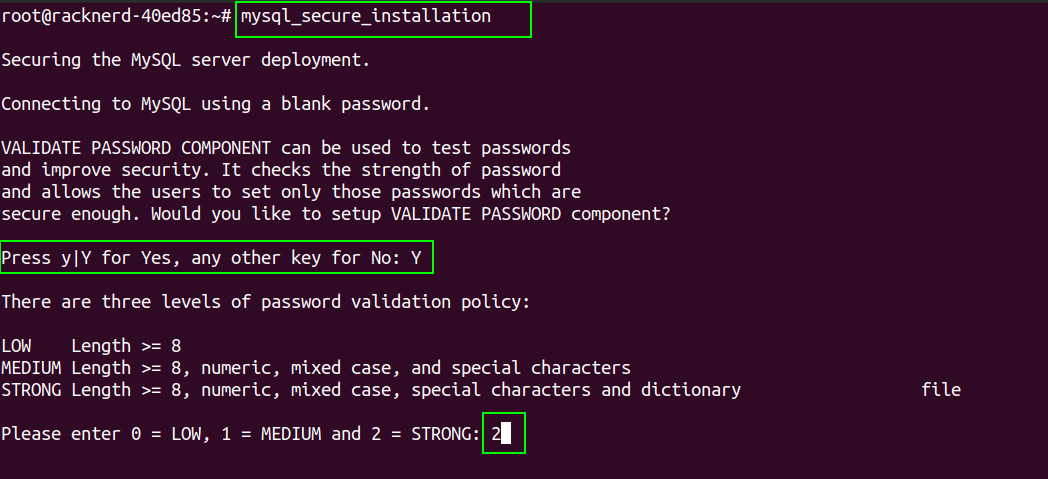
After installation, we need to Secure the installation.
For that we use, sudo mysql_secure_installation command This will prompt the following questions:
- Would you like to setup VALIDATE PASSWORD component? [Y/N] – Y
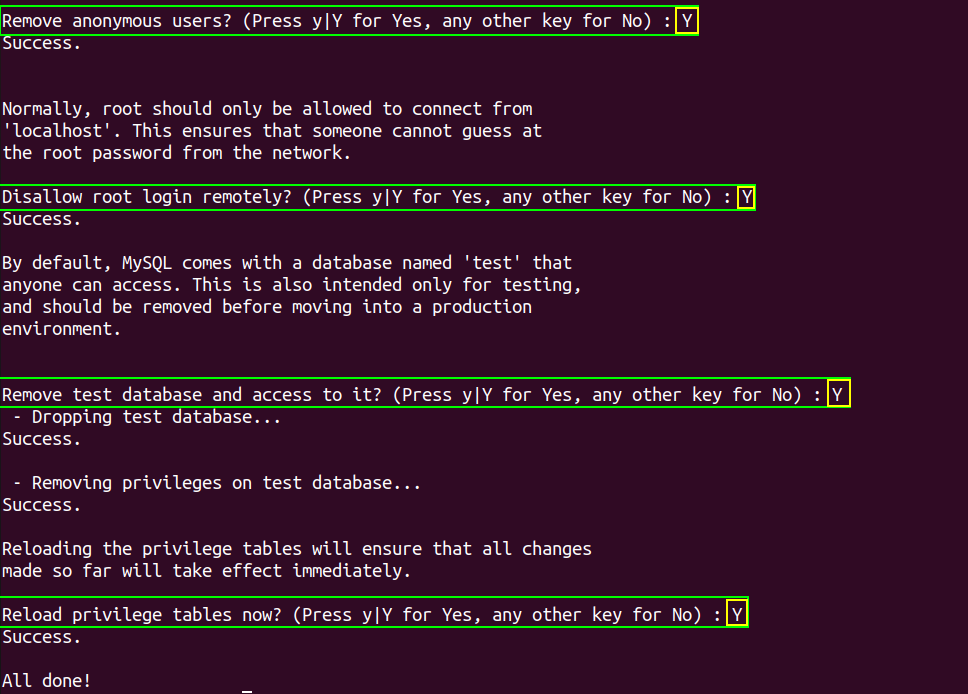
- Remove anonymous users? [Y/N] – Y
- Disallow root login remotely? [Y/N] – Y
- Remove test database and access to it? [Y/N] – Y
- Reload privilege tables now? [Y/N] – Y
Step 4 – Configure Firewall
If you have a firewall enabled, allow necessary ports:
sudo ufw allow 8088/tcp sudo ufw allow 80/tcp sudo ufw allow 443/tcp
Step 5 – Access OpenLiteSpeed WebAdmin Console
The OpenLiteSpeed admin panel is accessible via: http://your-server-ip:8088
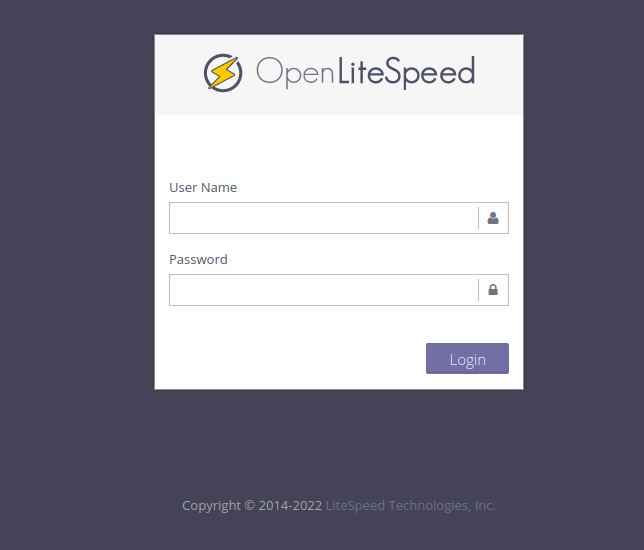
The default admin username is ‘admin’, and you can set a new password using:
sudo /usr/local/lsws/admin/misc/admpass.sh
Follow the prompts to set your password.
Step 6 – Configure Your Website
The default OpenLiteSpeed document root is:
/usr/local/lsws/Example/html/
You can create a new virtual host for your domain via the WebAdmin console or manually modify the configuration files.
Conclusion
Congratulations! You have successfully installed OpenLiteSpeed on your Ubuntu VPS. You may now host websites efficiently while maintaining excellent performance and flexibility. For the best results, make sure to update your server on a regular basis and optimize the setup.